Zapier Integration
Connect Formsuite with your favourite apps and automate your workflow using Zapier. This integration allows you to automatically send form responses and new contacts to over 5,000 apps, eliminating manual data entry and saving you valuable time.
Setting up your Zapier Integration
Step 1: Access Zapier
Visit Zapier and create an account if you haven't already. You can sign up for free at zapier.com.
Step 2: Create a New Zap
- Click the "Create Zap" button in your Zapier dashboard
- Search for "Formsuite" in the app directory
- Select "Formsuite" as your trigger app
Step 3: Choose Your Trigger
Select "New Contact" or "New Response" as your trigger event.
- New Response> This will activate your Zap whenever someone submits a response to your form.
- New Contact> This will activate your Zap whenever a new contact is created within your workspace.
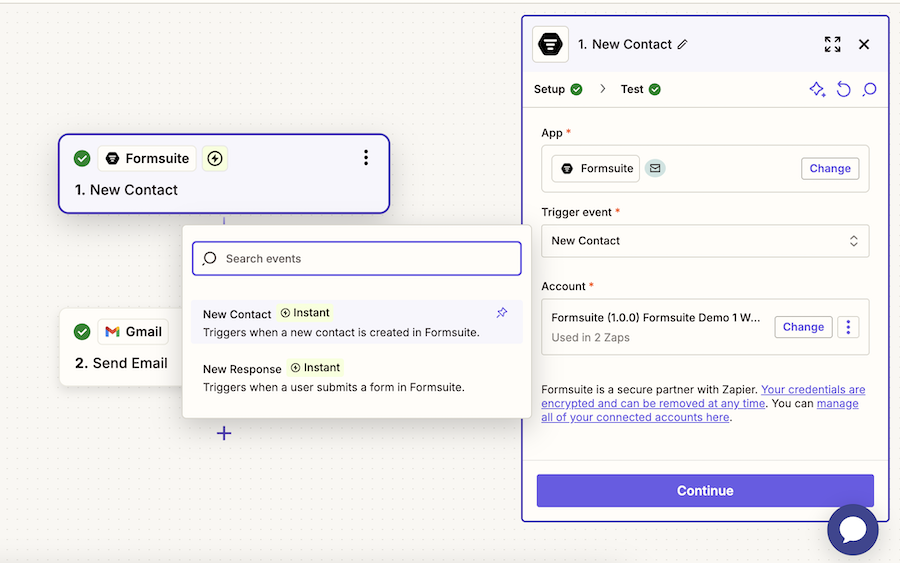
Step 4: Connect Your Formsuite Account
- Click "Sign in to Formsuite"
- Authorize Zapier to access your Formsuite account
- Select the workspace you want to connect
Step 5: Select Your Form (If using the New Response trigger)
If you're using the "New Response" trigger, choose the specific form you want to connect from the dropdown menu. You can test the connection to see sample form data.
Step 6: Set Up Your Action
- Choose the app you want to connect with Formsuite
- Select the specific action you want to occur when a form is submitted, or a contact is created
- Map your form fields to the corresponding fields in your chosen app
Available Form Data
The following data is available to use in your Zaps:
New Response
- ID
- Contact ID
- Created At
- Hidden Fields
- Referrer
- Score
- Sentiment
- Status
- Summary
- Referral
- Response Items
- Basic Contact Details(Name, Email, ID)
New Contact
- ID
- Name
Best Practices
- Test your Zap thoroughly before activating it
- Use the Zapier dashboard to monitor your Zap's activity
- Review your Zap regularly to ensure it's working as expected
- Set up error notifications to stay informed of any issues
Note: Your Zaps will not appear in your Formsuite dashboard. To manage your integrations, visit your Zapier account.
Common Use Cases
- Add form respondents to your CRM
- Send form data to spreadsheets
- Create tasks in project management tools
- Add subscribers to email marketing platforms
- Send notifications to team communication tools
Troubleshooting
Common Issues and Solutions
- Zap isn't triggering: Verify that your form is active and receiving submissions
- Missing data: Check your form field mapping in the Zap setup
- Authentication errors: Try reconnecting your Formsuite account in Zapier
Need help? Contact our support team or visit our help center for additional assistance with your Zapier integration.