Training Your Form's AI
Training your form's AI Assistant is a valuable step in improving your overall form's performance. This will play a key role in your AI Assistant's ability to communicate relevant information to your users when using the AI Conversation journey type. It'll also help your AI Assistant provide valuable insight into the data and responses it collects.
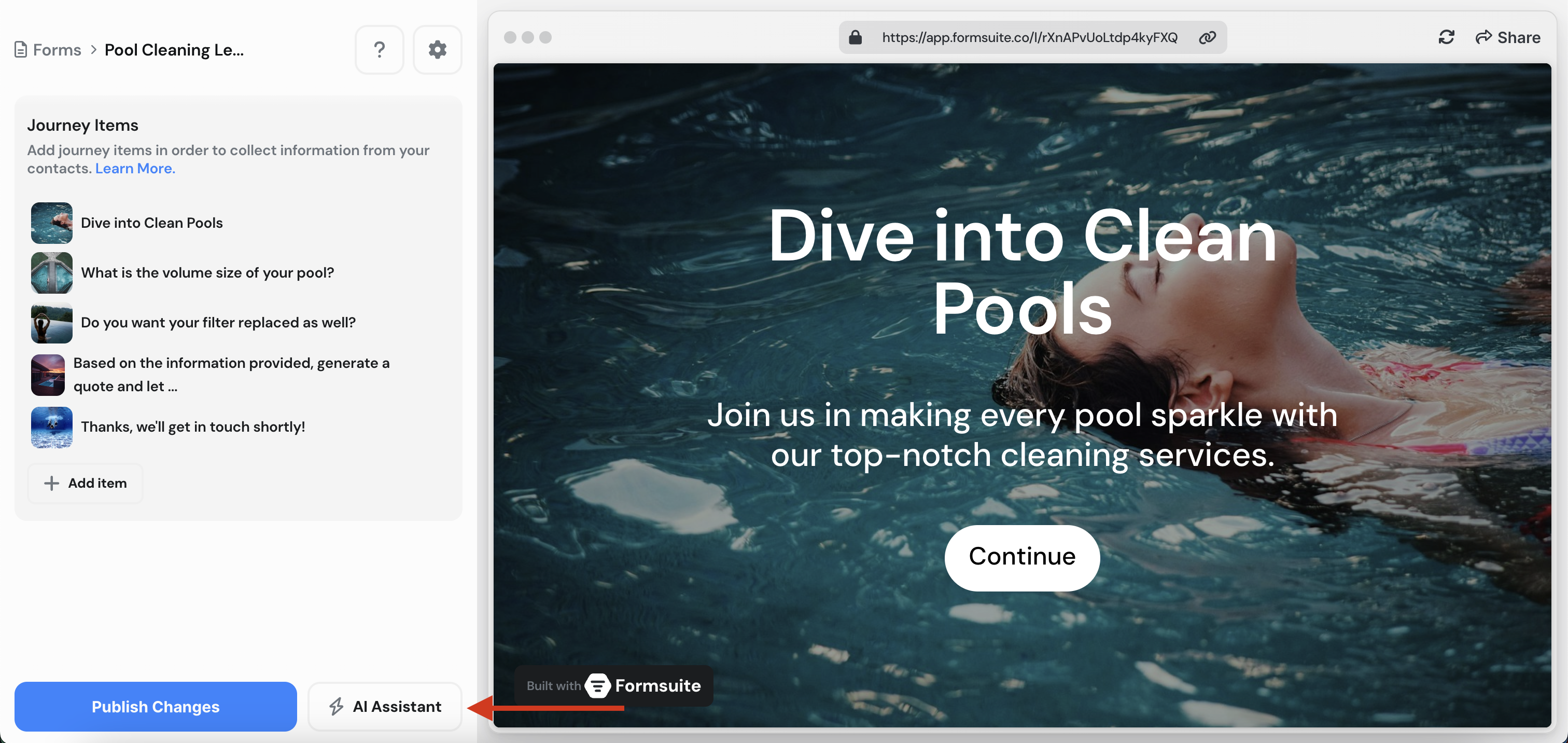
1. To get started, open your form in the editor. Then click on the "AI Assistant" button in the bottom left corner of the screen. This button can be found at the bottom of your left sidebar.
2. This will open the AI Assistant settings panel. Here is where you can modify any settings for your form's AI Assistant. In this tutorial, we're going to focus on the "Train the AI" setting. So now click on the "Train the AI" nav item in the panel's left sidebar.
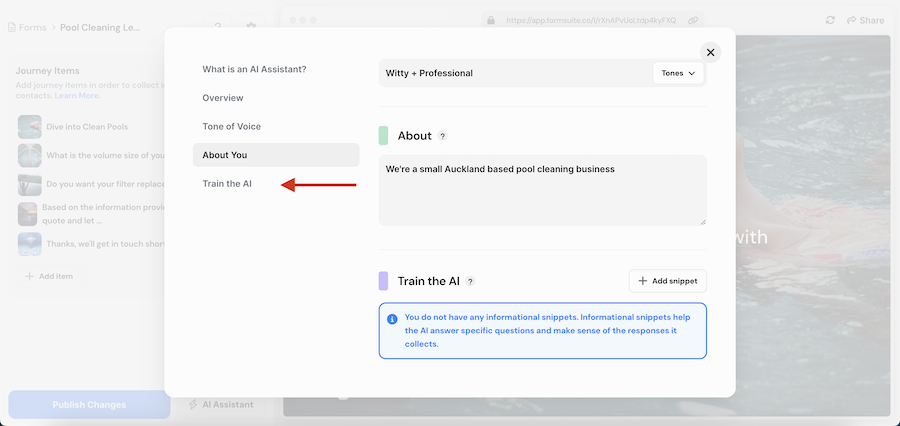
3. For a brand new form, you'll likely see a blue callout saying "You do not have any informational snippets. Informational snippets help the AI answer specific questions and make sense of the responses it collects".
This is fine, you're allowed to not have informational snippets if you choose. As said earlier though, informational snippets greatly improve your overall form's performance.
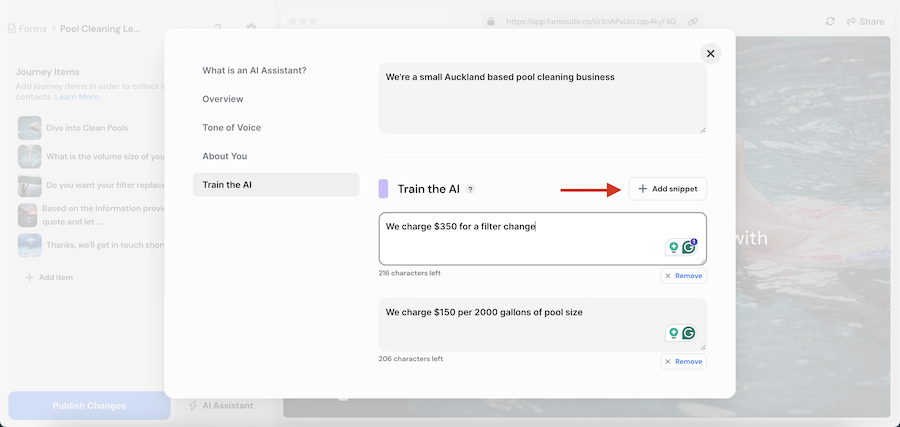
So let's add our first snippet. Start by clicking on "+ Add snippet". This will add a new text area block. You can add/remove as many snippets as you like.
After you've added your new snippet, include some relevant details that will be useful for your form's AI Assistant.
For example, the form we're using in this tutorial is for a pool-cleaning business. They are trying to generate quick quotes and collect leads that they can follow up on. So it would be useful to provide some pricing details that the AI Assistant can use to generate a quote.
So we're going to add a new information snippet saying "We charge $150 per 2000 gallons of pool size".
We're also going to add another snippet and enter "We charge $350 for a filter change".
Now, when a user answers our questions regarding their pool size and if they need a filter change, our AI Assistant will be able to provide an accurate quote to the user.
4 Great, now let's publish our changes. Here are the journey items for our form:
- Welcome Screen
- Ask for pool size in gallons(Short Text type)
- Ask if they need a filter change (Yes/No type)
- Generate a quote and collect email (AI Conversation type)
- End Screen
So when we get to the AI Conversation step, it'll reference the informational snippets we provided to calculate an accurate quote for the user.
Also when summarizing the response and contact, the AI Assistant will be able to include the quote details when saving the response.